

Painter
Takeoff software for painters: price a PDF plan in 10 minutes
How a professional painter prices jobs fast and accurately from a PDF plan, no CAD, no endless spreadsheet. Method, shortcuts and a worked example.
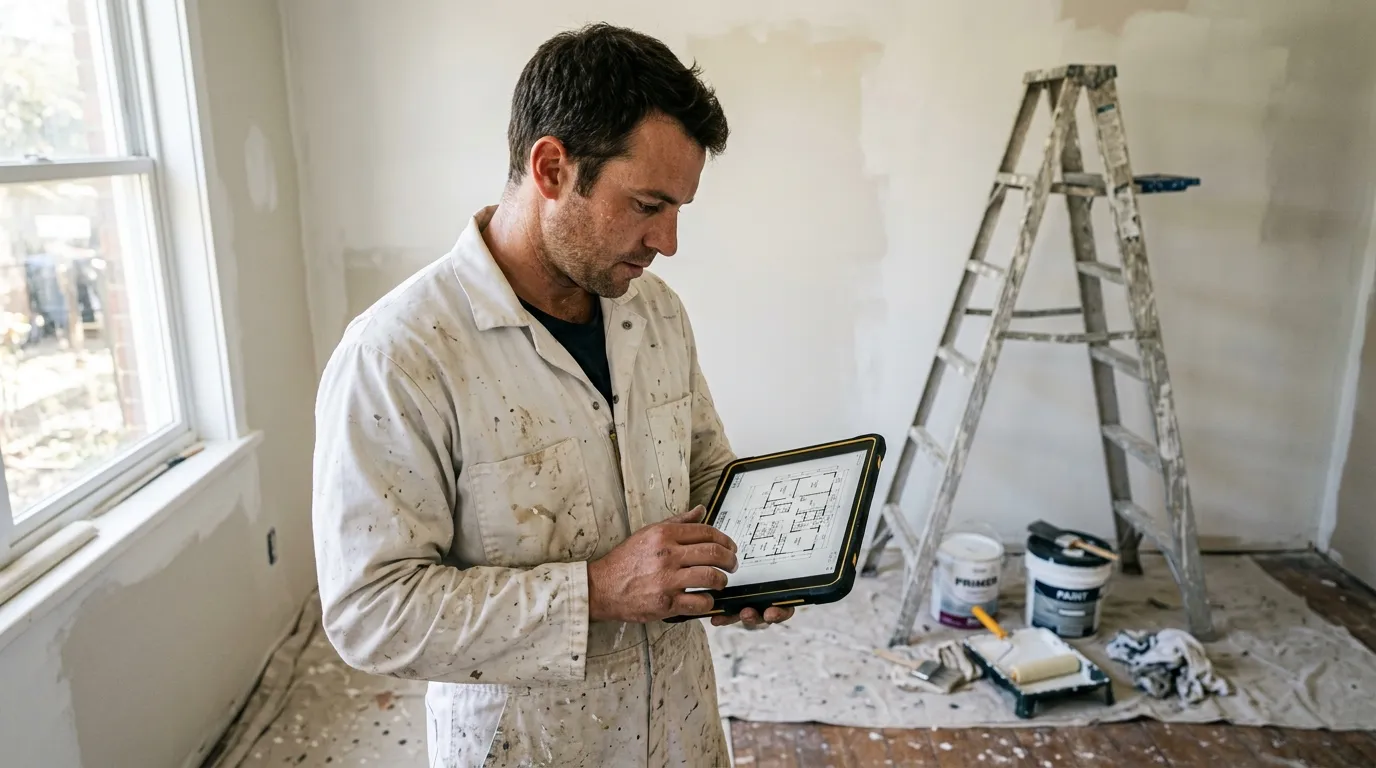
A painter who quotes fast and accurately doesn’t just save office time: they sign more jobs and protect their margin. The problem: most trades still use a ruler, a paper plan taped to the table, and a never-ending spreadsheet. The result: 2 to 3 hours per quote, area errors, and an under-estimated square metre that eats 8 % of the margin on an 80 m² apartment.
This article describes the method we see in painters who’ve switched to PDF takeoff software. Not the $800-a-month enterprise stuff: a simple web tool that opens the client’s PDF directly and makes it measurable. Plan on 10 minutes to price a complete 3-room apartment, calibration included.
Why PDF takeoff changes everything for a painter
Painters work in three units almost exclusively: m² of walls, m² of ceilings, linear metres of skirting boards. Everything else (sanding, primer, finish) is derived from coats. These three units are exactly what a PDF takeoff tool is built to calculate, provided the plan is calibrated.
Before: you take the ruler, measure 4.80 m × 3.20 m, jot 15.36 m² on the sheet. Repeat for each room. Add it up. Multiply by 2.50 m ceiling height. Roughly subtract openings. Quote goes out the next day.
After: open the PDF in the browser, calibrate once by clicking a known dimension (“this line is 4.80 m”), and every following click gives you the length or area directly in metres. No ruler, no reading errors, no mental arithmetic.
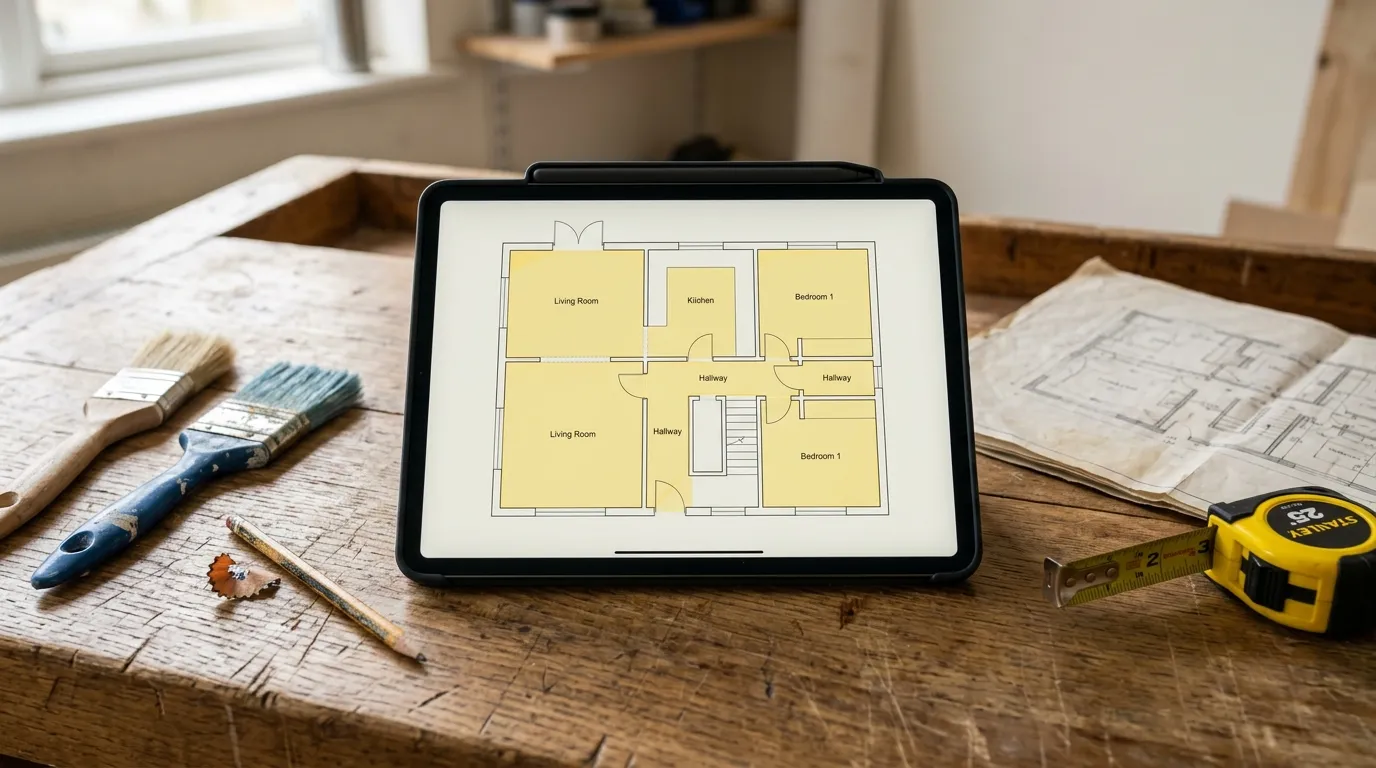
The time gap isn’t marginal. On a standard 65 m² 3-room flat, paper + Excel takes about 2 h 30 on average. On a well-honed PDF tool: 10 minutes, quote export included. That gain alone justifies a $20/month subscription: one extra signed quote per quarter pays for the year.
The 4 measurements a painter takes from a plan
1. Wall area (the big one)
It’s 60-70 % of a painter’s quote. Method:
- Trace the perimeter of the room on the plan (polygon or rectangle).
- Multiply by ceiling height: once at the top of the quote, not room by room.
- Subtract openings: doors (2 × 0.80 × 2.04 typical), windows (from the plan or estimated at 1.5 m² per standard window).
A solid takeoff tool lets you draw the room polygon and instantly returns perimeter + floor area. You enter the height once. Opening deductions either go flat (20 % of wall area in a typical home) or measured if the elevation is available.
2. Ceiling area
The easiest. Floor area = ceiling area. If you draw the polygon for the walls, you already have the ceiling area for free. Bonus: a good tool distinguishes floor area from developed area when you have angled walls or attics.
3. Skirting board linear metres
= Room perimeter − door widths. Again, the polygon you drew for walls already gives the perimeter. Subtract 0.80 m per door and you’re done.
4. Details (frames, radiators, singular points)
Simple counting. A PDF takeoff tool has a “count” mode that drops a point/icon on each click and increments a counter. Count doors, radiators, sockets to mask, downlights to cover. Each type becomes a quote line.
Concrete method: price an apartment in 10 minutes
Typical sequence. Assumption: you’ve been emailed the PDF plan of a 65 m² 3-room flat.
Minute 0-1: import and calibration. Open the PDF in Surplan, click the calibration tool, draw along a marked dimension on the plan (e.g. the 5.80 m wall of the living room), type 5.80, done. All your following measurements are in real metres.
Minute 1-5: room tracing. For each room, a polygon around the walls. Area and perimeter show on every click. The tool sums areas in a live total at the bottom of the screen.
Minute 5-7: openings. Count doors and windows with the count tool. Total: 7 doors, 5 windows.
Minute 7-9: recap generation. The tool exports an annotated PDF (your plan with surfaces colour-marked per room) plus a recap (summary table of areas and linear metres per room). You also get a CSV to paste into your quoting software.
Minute 9-10: turn into a quote. Apply your m² price ratios (primer, 2 coats acrylic, finish) to each recap line. Quote ready to send.
Compare that with the ruler + Excel scenario. The difference isn’t just time: it’s the fact that you attach the annotated plan to the quote. The client sees instantly what you’re talking about. Disputes like “oh I didn’t know that room was in the quote” disappear.
Comparison: paper, Excel, Bluebeam, Surplan
| Paper plan + ruler | Excel + calculator | Bluebeam Revu | Surplan | |
|---|---|---|---|---|
| Average time (65 m² flat) | 2 h 30 | 1 h 45 | 25 min | 10 min |
| Accuracy (% error) | ±5 % | ±3 % | ±0.5 % | ±0.5 % |
| Annotated plan attached to quote | no | no | yes (markup) | yes (annotated PDF + recap) |
| Learning curve | none | ~1 h Excel | 3-5 days training | < 10 min |
| Monthly cost | $0 | $0 (~$9/mo Office) | $20/mo ($200/yr) | |
| Data hosting | local | local | United States | France (Paris, EU) |
Bluebeam remains the gold standard in large architectural firms and major construction groups. For a self-employed painter or a team of 2–5, it’s usually oversized: you’re paying for 90 % of features you’ll never use.
Classic pitfalls to avoid
Forgetting to calibrate
The number-one beginner mistake. The PDF opens, you draw, you get an area… in arbitrary PDF units. Without calibration, the number is meaningless. Any serious tool refuses to measure until calibration is set. Verify this behaviour before committing to a software.
Calibrating on a dimension that isn’t one
If the plan was printed then re-scanned, annotated dimensions can be inaccurate. Prefer a primary architectural dimension (a façade length, a room width marked by the architect) over a distant point.
Measuring room by room instead of globalising
A painter doesn’t bill to the millimetre. You save time by drawing one polygon per room (not one wall at a time) and managing opening deductions globally (e.g. “−8 % of wall linear for openings in a standard home”).
Not attaching the annotated plan to the quote
It’s free in every modern tool, and it’s the difference between an “amateur” quote and a “pro” one. The client visualises. They sign faster.
Frequently asked questions
Do I need a powerful PC to do PDF takeoff?
No. A modern tool like Surplan runs in the browser, on any laptop from the last 5 years. No GPU required, no install, no IT setup. A MacBook Air or entry-level Windows is plenty.
Does the PDF have to be vectorial or can I use a scan?
Both work. A vector PDF (out of AutoCAD, Revit, ArchiCAD) will stay razor-sharp even at 800 % zoom. A scan of a paper plan also works, provided there’s a readable dimension somewhere for calibration. Accuracy is nearly identical once calibrated.
What if the plan has no marked dimensions?
Rare but real case. You can calibrate against a known object: a standard door is 0.80 m, a WC pan is about 0.40 m wide. Accuracy will be around ±2 %, plenty for paint quoting where you apply a safety margin anyway.
How much does takeoff software cost for an independent painter?
Surplan is €19 ex-VAT per month or €190 ex-VAT per year (~17 % discount, ~2 months free). No commitment, cancel in one click. That’s over 40 % cheaper than US equivalents like Bluebeam. 2 free plans without a credit card.
Are my client plans and data safe?
With Surplan, yes: your plans and measurements are hosted in France (Paris) at Supabase, on AWS infrastructure. Encryption at rest and in transit. You stay owner of your data and can export it any time. GDPR-native.
Does this replace my quoting software (EBP, Mestré, Sage Batigest)?
No, it complements it. Surplan computes areas and linear metres from the plan. You export to CSV and import the lines into your usual quoting software. The separation is intentional: each tool does what it does best.
The bottom line
A painter who goes from 2 h 30 to 10 minutes per quote isn’t just saving time: they free up bandwidth to visit more sites, do more walkthroughs, sign more contracts. That’s the difference between enduring the office and owning it.
If you want to try without commitment, Surplan’s 2 free plans don’t ask for a credit card. Import one of your PDFs, calibrate, measure. You’ll know within 20 minutes whether it fits how you work.